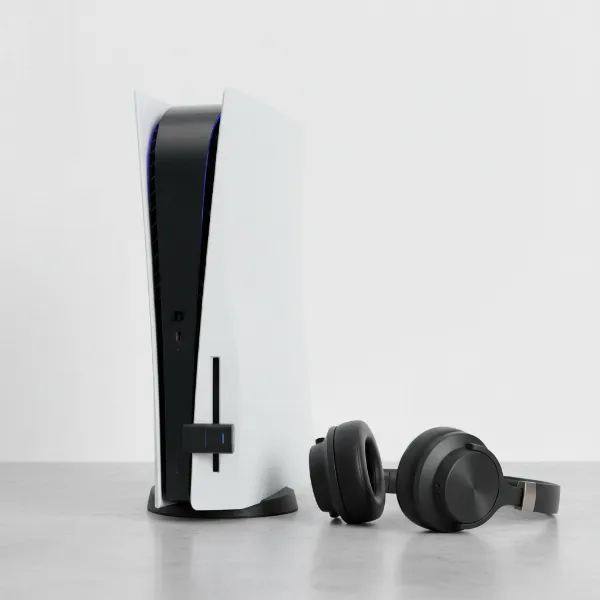
Sharing your favorite music, a thrilling podcast, or an engrossing movie with a friend or loved one often means passing an earbud back and forth – a less-than-ideal solution. Whether you’re traveling, studying, or simply enjoying media at home, the ability for two individuals to listen to the same audio source simultaneously, each with their own headphones, transforms the experience from a compromise into a shared pleasure. This comprehensive guide will explore various methods, from simple wired accessories to advanced wireless and software solutions, ensuring you can choose the perfect way to share audio between two pairs of headphones, tailored to your specific needs and devices.
Methods to Share Audio Between Two Pairs of Headphones
The approach you take to share audio depends largely on your source device and the type of headphones you wish to use. We’ll break down the most effective methods, covering both wired and wireless options, as well as software solutions for your PC.
Wired Solutions: The Headphone Splitter
|
Our Picks for the Best headphone in 2026
As an Amazon Associate I earn from qualifying purchases.
|
||
| Num | Product | Action |
|---|---|---|
| 1 | Sony WH-CH720N Noise Canceling Wireless Headphones Bluetooth Over The Ear Headset with Microphone and Alexa Built-in, White New |

|
| 2 | Soundcore by Anker Q20i Hybrid Active Noise Cancelling Headphones, Wireless Over-Ear Bluetooth, 40H Long ANC Playtime, Hi-Res Audio, Big Bass, Customize via an App, Transparency Mode |
|
| 3 | Amazon Basics On Ear Wired Computer Headset with Adjustable Microphone, 3.5mm Port or in-Line Control with USB-A Port, Foldable, Clear Sound, Small/Medium Size, Black |
|
| 4 | Sony WH-CH720N Noise Canceling Wireless Headphones Bluetooth Over The Ear Headset with Microphone, Pink |
|
| 5 | Soundcore by Anker Q20i Hybrid Active Noise Cancelling Headphones, Wireless Over-Ear Bluetooth, 40H Long ANC Playtime, Hi-Res Audio, Big Bass, Customize via an App, Transparency Mode |
|
| 6 | Soundcore by Anker Q20i Hybrid Active Noise Cancelling Headphones, Wireless Over-Ear Bluetooth, 40H Long ANC Playtime, Hi-Res Audio, Big Bass, Customize via an App, Transparency Mode (Pink) |
|
| 7 | Sony WH-CH720N Noise Canceling Wireless Headphones Bluetooth Over The Ear Headset with Microphone and Alexa Built-in, Black New |
|
| 8 | Amazon Basics Hybrid Active Noise Cancelling Headphones, 35 Hours Playtime with ANC on and 45 Hours with ANC Off, Wireless, Over Ear Comfortable Fit, Bluetooth, One Size, Black |
|
| 9 | Amazon Basics Bluetooth On-Ear Headphones Wireless with Microphone, Deep Bass, 35 Hour Playtime, Foldable, Collapsible, Portable Travel Friendly, Black |
|
| 10 | Soundcore by Anker Q20i Hybrid Active Noise Cancelling Headphones, Wireless Over-Ear Bluetooth, 40H Long ANC Playtime, Hi-Res Audio, Big Bass, Customize via an App, Transparency Mode (White) |
|
The most straightforward and often most cost-effective way to share audio between two pairs of wired headphones is by using a headphone splitter. These simple adapters convert a single 3.5mm audio jack into two or more output ports.
Advantages and Disadvantages of Headphone Splitters
Advantages:
- Simplicity: Plug-and-play operation requires no setup or software.
- Cost-Effective: Splitters are generally very inexpensive, often costing less than $15.
- Universal Compatibility: Works with any device featuring a standard 3.5mm audio output and any 3.5mm wired headphones.
- No Latency: As it’s a direct wired connection, there is no audio delay, making it ideal for watching videos or gaming.
Disadvantages:
- Cable Clutter: Adds more cables to your setup.
- Potential for Volume/Quality Degradation: Cheaper splitters can sometimes lead to a slight drop in volume or minor signal interference if not well-made.
- Limited Range: Listeners must remain close to the audio source.
Ideal Use Cases
Headphone splitters are perfect for scenarios where portability, simplicity, and zero latency are key. Think long flights watching a movie on a tablet, sharing music on a train, or joint gaming sessions on a console with a 3.5mm output. They are the go-to for quick, reliable audio sharing without complex setups.
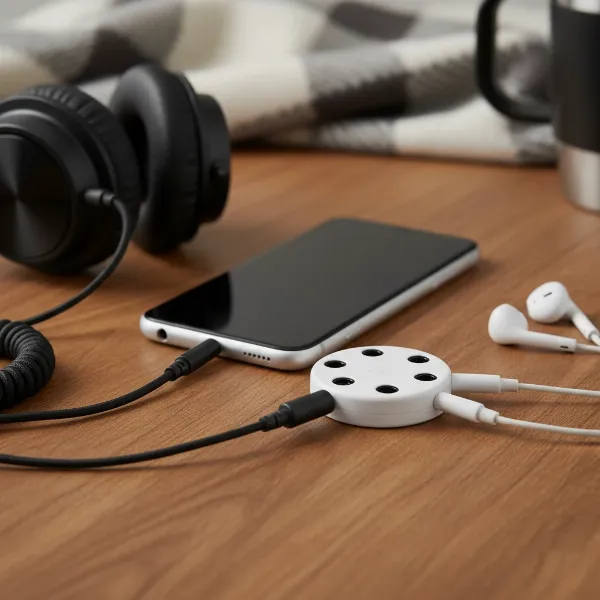 A multi-port headphone splitter connected to a smartphone, with two pairs of wired headphones plugged in, illustrating audio sharing for two listeners.
Wireless Solutions: Embracing Bluetooth Technology
Wireless audio sharing has become increasingly popular, offering greater freedom of movement. Several modern devices and dedicated accessories enable simultaneous Bluetooth connections.
Bluetooth Transmitters/Adapters
For devices without native multi-headphone Bluetooth capabilities (like older TVs, desktop PCs without Bluetooth 5.0, or some gaming consoles), a Bluetooth multi-stream transmitter is an excellent solution.
- How They Work: These external dongles plug into your audio source’s 3.5mm jack or USB port and broadcast the audio signal to two (or sometimes more) paired Bluetooth headphones simultaneously.
- Considerations: Look for transmitters supporting Bluetooth 5.0 (or newer) and A2DP (Advanced Audio Distribution Profile) for better range and audio quality. Some models, like the Avantree Orbit, are designed for multi-point connections. Be aware that while many aim for low latency, some cheaper options might introduce a noticeable delay, especially problematic for video synchronization.
Device-Specific Bluetooth Features
Many contemporary smartphones and tablets now offer built-in features for sharing audio wirelessly, making it remarkably convenient.
Apple’s Share Audio (iPhone/iPad)
Apple’s “Share Audio” feature allows two people to listen to the same audio from a single iPhone or iPad using compatible AirPods or Beats headphones.
- Compatibility: Requires an iPhone or iPad running iOS/iPadOS 13 or later, and supported headphones like AirPods (2nd generation or later), AirPods Pro, AirPods Max, or certain Beats models equipped with the W1 or H1 chip.
- How to Use:
- Connect your primary AirPods or Beats headphones to your iPhone or iPad as usual.
- Start playing audio.
- Open the Control Center (swipe down from the top-right corner on Face ID devices, or swipe up from the bottom on Touch ID devices).
- Tap the AirPlay icon (a triangle with concentric circles) within the Now Playing card.
- Tap “Share Audio.”
- Bring your friend’s compatible AirPods (in their charging case with the lid open) or Beats headphones (in pairing mode) close to your device.
- Follow the on-screen prompts to connect the second pair.
- Volume Control: You can individually adjust the volume for each set of headphones through the Control Center. For AirPods Pro and AirPods Max, you can even select different listening modes (e.g., Transparency or Noise Cancellation) for each user.
Samsung’s Dual Audio (Galaxy Phones)
Samsung’s “Dual Audio” feature enables users of compatible Galaxy smartphones to stream audio to two different Bluetooth headphones or speakers at once.
- Compatibility: Available on many Samsung Galaxy phones (starting with the Galaxy S8 and later) running Android 10 or newer, provided the phone supports Bluetooth 5.0.
- How to Use:
- Ensure both Bluetooth headphones are paired with your Samsung Galaxy device.
- Start playing audio.
- Swipe down from the top of the screen to access the Quick Panel.
- Tap the “Media” or “Media output” button.
- From the list of connected devices, select both headphones you wish to use.
- You can then adjust the volume for each device independently.
Other Android Devices
While not all Android devices have a dedicated “Dual Audio” feature like Samsung, some newer models might offer similar functionality in their Bluetooth settings or media output controls. If your Android phone lacks this native capability, you can still achieve dual Bluetooth listening by using a Bluetooth audio transmitter, as described previously. Plug it into your phone’s 3.5mm jack or USB-C port, pair both headphones to the transmitter, and you’re good to go. [cite: 1 (second search block)]
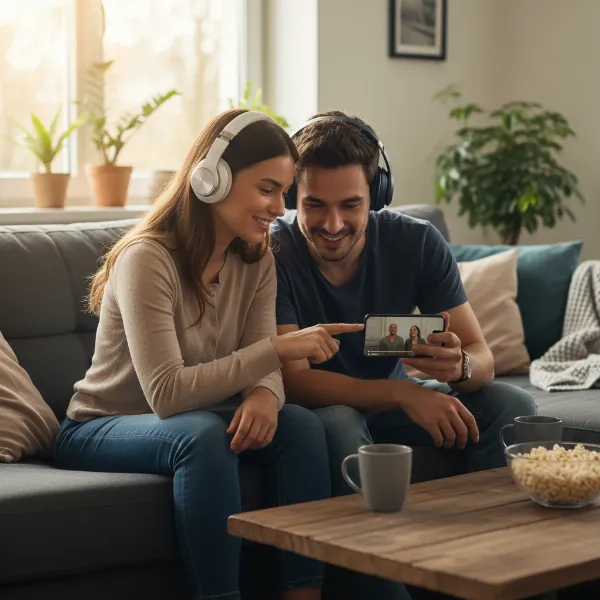 Two people listening to audio from a single smartphone using two pairs of Bluetooth headphones, illustrating wireless audio sharing.
Software Solutions for PCs: Advanced Audio Routing
For PC users, especially those seeking more control or facing compatibility challenges with hardware, software-based solutions offer powerful ways to route audio to multiple outputs.
Stereo Mix (Windows)
Windows’ built-in “Stereo Mix” feature can be configured to send audio to multiple output devices, even mixing wired and wireless headphones.
- How it Works: Stereo Mix essentially captures the audio playing from your PC and treats it as a “recording” input, which can then be “listened to” via a secondary output device. This effectively duplicates the audio stream.
- Steps (Windows 10/11):
- Connect both sets of headphones (e.g., one wired 3.5mm, one USB, or one Bluetooth and one wired).
- Go to
Settings > System > Sound. UnderOutput, select your primary headphones (e.g., your 3.5mm wired headset) as the default output device. - Scroll down and click
More Sound Settingsto open the classic Sound Control Panel. - Navigate to the
Recordingtab. - If you don’t see “Stereo Mix,” right-click anywhere in the window and select
Show Disabled Devices, thenShow Disconnected Devices. - Right-click on
Stereo Mixand selectEnable, thenSet as Default Device. - Right-click on
Stereo Mixagain and selectProperties. - Go to the
Listentab. - Check the box next to
Listen to this device. - In the
Playback through this devicedropdown menu, select your second pair of headphones (e.g., your USB or Bluetooth headset). - Click
Apply, thenOK. You should now hear audio through both devices.
Virtual Audio Mixers (e.g., VoiceMeeter, Virtual Audio Cable)
For audiophiles or users needing more granular control over audio routing, virtual audio mixer software provides advanced capabilities.
- How They Work: These programs create virtual audio devices that act as a bridge, allowing you to route and mix audio from various applications to multiple physical output devices (headphones, speakers) simultaneously. They offer sophisticated control over channels, volumes, and effects.
- Popular Options:
- VoiceMeeter: A popular free virtual mixer that allows you to route audio to different output devices, including mixed types (wired, USB, Bluetooth). After installation, you set VoiceMeeter Input as your default playback device, then configure its internal hardware outputs (A1, A2, etc.) to your desired headphones.
- Virtual Audio Cable (VAC): Creates virtual cables that can transmit audio streams between applications and devices within your computer, offering bit-perfect audio transfer and very low latency if properly configured. It’s an audio bridge that allows multiple applications to play to one virtual cable and multiple applications to record from it, effectively splitting the sound.
- Pros and Cons: These tools offer immense flexibility but come with a steeper learning curve. They are ideal for complex setups, streaming, or professional audio needs where precise control is paramount.
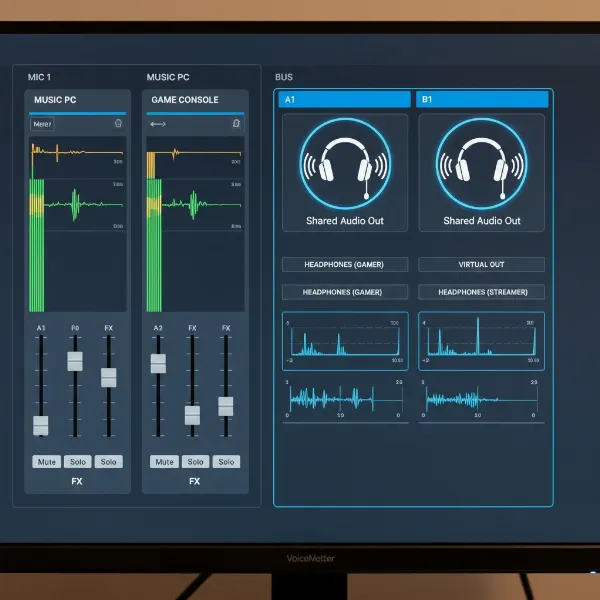 A computer screen showing virtual audio mixer software with multiple audio outputs configured, representing software-based audio sharing.
Key Factors When Choosing an Audio Sharing Method
Selecting the best way to share audio requires considering several critical aspects to ensure the optimal experience for all listeners.
Device Compatibility
The first step is always to check the compatibility of your audio source and your headphones.
- Source Device: Is it a smartphone (iPhone, Android), a tablet, a laptop (PC, Mac), a TV, or a gaming console? Each platform has different native capabilities and accessory requirements.
- Headphone Type: Are your headphones wired (3.5mm, USB) or wireless (Bluetooth)? What Bluetooth version do they support? Older Bluetooth versions might not support simultaneous connections or offer lower audio quality.
Audio Quality and Latency
The method you choose can impact the sound quality and introduce latency (audio delay).
- Wired Splitters: Generally offer lossless audio with no latency, though very cheap splitters might slightly degrade the signal.
- Bluetooth: While convenient, Bluetooth connections can sometimes introduce a slight delay (latency) and compression artifacts, especially with older Bluetooth standards or non-low-latency codecs. This is crucial for watching videos where lip-sync issues can be distracting, or for gaming where responsiveness is key.
- Software Solutions: Can maintain high audio fidelity but depend on your computer’s processing power and correct configuration.
Ease of Use
Consider how quickly and easily you want to set up your shared audio experience.
- Headphone Splitters: Are the simplest to use – just plug and play.
- Device-Specific Bluetooth Features (Apple Share Audio, Samsung Dual Audio): Are also quite user-friendly once you know the steps, integrating seamlessly with your device’s interface.
- Bluetooth Transmitters: Require an initial pairing process but are then straightforward.
- PC Software Solutions: Involve the most complex setup but offer the most control.
Budget
Your budget will also play a role in your decision.
- Wired Splitters: Are the most affordable option.
- Bluetooth Transmitters: Typically range from $20 to $100+.
- Software Solutions: Some are free (like VoiceMeeter Basic), while others (like Virtual Audio Cable) might have a cost.
Number of Listeners and Portability Needs
Most solutions primarily focus on two listeners. If you need to share with more, you might look for multi-port wired splitters or more advanced Bluetooth chaining solutions (though these can get complex and costly). For on-the-go sharing, wireless options or compact wired splitters are superior.
Comparison Table: Audio Sharing Methods
| Method | Type | Best For | Pros | Cons | Budget (Approx.) |
|---|---|---|---|---|---|
| Headphone Splitter | Wired | Smartphones, Tablets, Laptops, MP3 players | Simple, affordable, no latency, universal. | Cable clutter, potential minor quality dip. | $5 – $15 |
| Bluetooth Transmitter | Wireless | TVs, PCs, consoles without multi-stream BT | Wireless freedom, works with any BT headphones. | Potential latency, requires separate device, setup. | $20 – $100+ |
| Apple Share Audio | Wireless | iPhone/iPad (iOS 13+) | Seamless integration, individual volume/mode control. | Limited to Apple/Beats headphones with W1/H1 chip. | N/A (built-in) |
| Samsung Dual Audio | Wireless | Samsung Galaxy (Android 10+, BT 5.0) | Native integration, individual volume control. | Limited to compatible Samsung phones. | N/A (built-in) |
| Windows Stereo Mix | Software | Windows PCs | Free, uses existing hardware, flexible connection types. | Setup can be tricky, one wired headphone often required. | Free |
| Virtual Audio Mixers (PC) | Software | Advanced PC users, streamers | High control, multi-source/output routing, no quality loss. | Complex setup, learning curve. | Free – $50+ (software) |
Tips for the Best Audio Sharing Experience
To ensure your shared listening experience is as enjoyable as possible, keep these tips in mind:
- Invest in Quality Hardware: A cheap splitter can introduce noise or reduce volume significantly. Similarly, a reputable Bluetooth transmitter will offer better range and lower latency.
- Keep Devices Updated: Ensure your smartphone, tablet, or PC operating system and audio drivers are up to date. Software updates often improve Bluetooth performance and introduce new audio features.
- Manage Volume Levels: Shared audio might mean shared overall volume. Use individual volume controls (if available on your device or headphones) to customize listening levels for each person.
- Mind the Proximity (Bluetooth): For wireless sharing, keep your headphones and the source device within a reasonable range to maintain a stable connection and minimize dropouts.
- Communicate with Your Listening Buddy: Agree on what you’re listening to and manage expectations, especially regarding potential minor delays or volume differences, to keep the experience smooth and enjoyable.
“The magic of sharing audio isn’t just about the technology; it’s about enhancing connection and shared experiences. A simple splitter or a smart device feature can turn a solo listening session into a memorable joint adventure.” – Admin, headphonesme.com
Conclusion
Sharing audio between two pairs of headphones has evolved from a niche need to a widely accessible feature, thanks to advancements in both wired accessories and wireless technology. Whether you opt for the simplicity of a headphone splitter, leverage the smart capabilities of your iPhone or Samsung Galaxy, or delve into the advanced routing options of PC software like Stereo Mix or VoiceMeeter, there’s a solution for almost every scenario. By understanding the different methods and considering factors like compatibility, audio quality, and ease of use, you can confidently choose the best approach to double your listening pleasure.
What’s your favorite way to share audio, and what new listening experiences will you unlock with these methods?
Frequently Asked Questions
Can I share audio between two different brands of Bluetooth headphones?
Yes, in most cases, you can share audio between different brands of Bluetooth headphones. Devices with native multi-stream Bluetooth features (like Apple’s Share Audio or Samsung’s Dual Audio) or external Bluetooth transmitters are designed to work with various Bluetooth-enabled headphones, regardless of brand, as long as they support the necessary Bluetooth profiles (like A2DP).
Will using a headphone splitter reduce the sound quality?
A high-quality headphone splitter should not significantly reduce sound quality. However, inexpensive or poorly made splitters might cause a slight drop in volume, introduce static, or minor signal degradation because they divide the electrical signal from a single source. Choosing a reputable brand can mitigate these issues.
Is there any latency when sharing audio wirelessly?
Yes, wireless audio sharing, particularly via Bluetooth, can introduce some latency (audio delay). The degree of latency depends on the Bluetooth version, the codecs used (e.g., aptX Low Latency minimizes delay), and the quality of the transmitting and receiving devices. For casual music listening, it’s often unnoticeable, but for videos or gaming, it can be a concern.
Can I share audio between two headphones if one is wired and one is wireless?
Yes, it is possible to share audio between a wired and a wireless pair of headphones, especially on a PC using features like “Stereo Mix” or virtual audio mixer software (e.g., VoiceMeeter). Some external Bluetooth transmitters also offer a passthrough option for a wired connection while simultaneously streaming to a Bluetooth device.
Do all smart TVs support connecting two pairs of Bluetooth headphones?
No, not all smart TVs natively support connecting two pairs of Bluetooth headphones simultaneously. While many modern smart TVs have Bluetooth, it’s often limited to connecting one device at a time or specific accessories. To share audio on a TV, you might need a dedicated Bluetooth multi-stream transmitter plugged into the TV’s audio output.