Bluetooth headphones offer unparalleled freedom and convenience, liberating us from tangled cables and enhancing our daily commutes, workouts, and work-from-home setups. Yet, few things are as frustrating as when your trusty wireless companions suddenly refuse to connect. That stubborn “pairing failed” message or the complete absence of your headphones from the device list can turn a simple listening session into a perplexing tech battle. This guide is your ultimate weapon, providing clear, step-by-step solutions to overcome common Bluetooth headphone pairing issues and get you back to enjoying your audio.
Understanding Why Your Bluetooth Headphones Won’t Connect
Before diving into solutions, it’s helpful to grasp the common reasons why your headphones might be giving you the silent treatment. Often, the culprit is simpler than you think. Issues can range from basic oversights like low battery levels or Bluetooth being inadvertently disabled, to more complex software glitches or signal interference. Sometimes, your headphones might just be trying to connect to another device, or there could be a compatibility mismatch. Identifying these potential causes is the first step toward a successful resolution.
Step-by-Step Solutions to Fix Bluetooth Pairing Issues
When your headphones refuse to pair, a systematic approach is key. Starting with the most straightforward checks and gradually moving to more advanced solutions can save you time and frustration. Let’s walk through the troubleshooting process together.
1. The Essential First Checks
|
Our Picks for the Best headphone in 2026
As an Amazon Associate I earn from qualifying purchases.
|
||
| Num | Product | Action |
|---|---|---|
| 1 | Hybrid Active Noise Cancelling Bluetooth 6.0 Headphones 120H Playtime 6 ENC Clear Call Mic, Over Ear Headphones Wireless with Hi-Res Audio Comfort Earcup Low Latency ANC Headphone for Travel Workout |

|
| 2 | Sony WH-CH720N Noise Canceling Wireless Headphones Bluetooth Over The Ear Headset with Microphone and Alexa Built-in, Black New |
|
| 3 | JBL Tune 770NC - Adaptive Noise Cancelling with Smart Ambient Wireless Over-Ear Headphones, Bluetooth 5.3, Up to 70H Battery Life with Speed Charge, Lightweight, Comfortable & Foldable Design (Black) |
|
| 4 | Soundcore by Anker Q20i Hybrid Active Noise Cancelling Headphones, Wireless Over-Ear Bluetooth, 40H Long ANC Playtime, Hi-Res Audio, Big Bass, Customize via an App, Transparency Mode |
|
| 5 | Logitech H390 Wired Headphones with Mic, USB-A Headset with Microphone for PC, Noise Cancelling Microphone for Video Meetings, Music, Gaming - Black |
|
| 6 | BERIBES Bluetooth Headphones Over Ear, 65H Playtime and 6 EQ Music Modes Wireless Headphones with Microphone, HiFi Stereo Foldable Lightweight Headset, Deep Bass for Home Office Cellphone PC Ect. |
|
| 7 | Sony WH-CH520 Wireless Headphones Bluetooth On-Ear Headset with Microphone and up to 50 Hours Battery Life with Quick Charging, Black |
|
| 8 | Soundcore by Anker Q20i Hybrid Active Noise Cancelling Headphones, Wireless Over-Ear Bluetooth, 40H Long ANC Playtime, Hi-Res Audio, Big Bass, Customize via an App, Transparency Mode (White) |
|
| 9 | TAGRY Hybrid Active Noise Cancelling Bluetooth Headphones 100H Playtime Wireless Over Ear Headphone with Fast Charging Hi-Res Audio Headsets Comfort Earcups for Commute Travel Office Phone PC Black |
|
| 10 | Sony WH-CH520 Wireless Headphones Bluetooth On-Ear Headset with Microphone and up to 50 Hours Battery Life with Quick Charging, Blue |
|
Many pairing problems stem from simple oversights. Begin with these fundamental checks to ensure your setup is ready for connection.
Ensure Bluetooth is Enabled: This might sound obvious, but it’s the most frequent oversight. Double-check that Bluetooth is activated on both your headphones and the source device you intend to pair with—whether it’s your smartphone, tablet, or computer. For headphones, a blinking LED light often indicates they’re in discoverable mode, ready to connect.
Charge Both Devices: A low battery can severely hinder a device’s ability to maintain a stable Bluetooth connection or even pair at all. Ensure both your headphones and the device you’re trying to connect them to are adequately charged before attempting to pair. A full charge eliminates a common, easily fixable barrier.
Check Proximity and Reduce Interference: Bluetooth technology operates over short distances, typically up to 30 feet. Ensure your headphones and the pairing device are close to each other. Additionally, other wireless signals from Wi-Fi routers, microwaves, or even unshielded USB 3.0 ports can interfere with Bluetooth signals. Try moving to a different location or temporarily turning off other nearby wireless devices to minimize potential disruptions.
Activate Pairing Mode: For new connections or re-pairing, your Bluetooth headphones must be explicitly put into “pairing mode.” This process varies by brand and model, but it usually involves pressing and holding a specific button on the headphones until an LED indicator flashes in a particular pattern. Always consult your headphone’s user manual for precise instructions.
2. Restart and Reset Basics
If the initial checks don’t resolve the issue, a quick reset or restart can often clear up minor software glitches that are preventing a successful connection.
Power Cycle Both Devices: Just like restarting a computer can fix many software bugs, turning your headphones off and then back on can refresh their internal processes. Similarly, restarting your phone, tablet, or computer can clear temporary system errors that might be impacting Bluetooth functionality. This is often the easiest and most common fix.
Forget and Re-pair the Device: If your headphones have previously paired with your device, the stored connection data might be corrupted. “Forgetting” the device forces a fresh connection.
Here’s how:
- Go to the Bluetooth settings on your source device (phone, tablet, computer).
- Locate your headphones in the list of previously paired devices.
- Select the option to “Forget,” “Unpair,” or “Remove” the device.
- Once removed, put your headphones back into pairing mode and attempt to connect them again as if they were a new device.
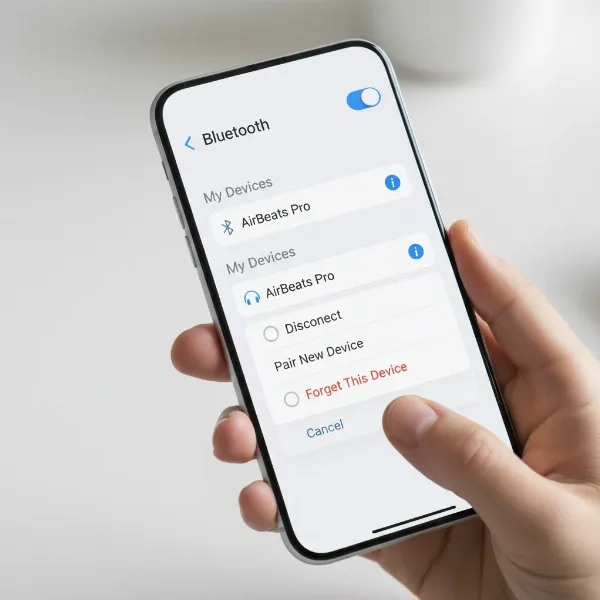 Person forgetting and re-pairing Bluetooth headphones on a smartphone screen
3. Advanced Troubleshooting Steps
For more persistent problems, you might need to dig a little deeper. These advanced steps address software-related issues and potential conflicts.
Disconnect from Other Devices: Many Bluetooth headphones can connect to multiple devices, but typically only maintain an active audio connection with one at a time. If your headphones are currently paired and connected to another phone, tablet, or computer nearby, they won’t be discoverable for a new connection. Ensure they are disconnected from any other devices before attempting to pair with your desired source.
Update Software and Firmware: Outdated software or firmware can lead to compatibility issues and connection failures.
- Source Device: Check for and install any available operating system updates for your smartphone (iOS, Android), tablet, or computer (Windows, macOS). These updates often include Bluetooth bug fixes and improvements.
- Headphones: Many modern headphones have companion apps that allow you to check for and install firmware updates. Always ensure your headphones are running the latest firmware provided by the manufacturer.
- Computer Drivers: On a PC, outdated Bluetooth drivers can be a significant cause of pairing problems. Access your Device Manager, locate your Bluetooth adapter, and check for driver updates. You may also need to visit your computer manufacturer’s website to download the latest drivers.
> “Keeping your devices’ software and firmware up to date is like giving them a regular health check. It proactively addresses known bugs and ensures optimal compatibility, often preventing many frustrating pairing issues before they even start.” – Dr. Anya Sharma, Wireless Audio Specialist
Clear Bluetooth Cache (Android Specific): On Android devices, a corrupted Bluetooth cache can sometimes interfere with pairing. Clearing this cache can resolve such issues without deleting your paired devices. Navigate to your phone’s Settings > Apps (or Apps & notifications) > See all apps > Tap the three dots and Show system > Bluetooth > Storage & cache > Clear cache and Clear storage. After clearing, restart your phone and try pairing again.
Run Bluetooth Troubleshooter (Windows Specific): Windows operating systems often include built-in troubleshooters designed to diagnose and fix common issues. If you’re on a Windows PC, go to Settings > System > Troubleshoot > Other troubleshooters, and then run the Bluetooth troubleshooter. This automated tool can often identify and fix problems without manual intervention.
Reset Network Settings (Mobile Devices): As a more comprehensive step for mobile devices, resetting network settings can resolve various connectivity problems, including Bluetooth issues. This action will reset Wi-Fi passwords, cellular settings, and Bluetooth connections. On iOS, go to Settings > General > Transfer or Reset iPhone > Reset > Reset Network Settings. For Android, look under Settings > System > Reset options > Reset Wi-Fi, mobile & Bluetooth.
4. When All Else Fails
If you’ve systematically worked through all the previous steps and your headphones still aren’t pairing, it’s time to consider a few final diagnostics.
Test with Another Device: To pinpoint whether the problem lies with your headphones or your primary device, try pairing your headphones with a different smartphone, tablet, or computer. If they connect successfully to the alternate device, the issue is likely with your original source device. If they still fail to connect, the headphones themselves might be the problem.
Factory Reset Your Headphones: This is a drastic but often effective measure for stubborn issues. A factory reset reverts your headphones to their original settings, clearing any corrupted data or persistent bugs. The exact process varies greatly by manufacturer and model, so you’ll need to consult your headphone’s user manual for specific instructions. Be aware that this will erase any custom settings or previously paired devices.
Consider Hardware Issues: If you’ve exhausted all troubleshooting steps and your headphones still won’t connect, there’s a possibility of a hardware malfunction. This could be due to physical damage (e.g., drops, water exposure) or faulty internal components. In such cases, professional repair services or considering a replacement might be necessary. Some issues, like damaged Bluetooth components, can render the functionality completely inoperable.
Tips for Seamless Bluetooth Pairing
To minimize future pairing headaches, adopt these best practices:
- Always ensure your Bluetooth headphones and source device are fully charged before attempting to connect.
- Regularly update the operating system of your primary device and the firmware of your headphones to benefit from the latest bug fixes and compatibility improvements.
- Be mindful of your environment; avoid pairing in areas with high wireless signal interference.
- Familiarize yourself with your headphone’s specific pairing mode instructions and LED indicators. Understanding these nuances can significantly streamline the connection process.
Conclusion: Reconnect to Your Audio World
Bluetooth headphones have revolutionized how we experience audio, offering unparalleled convenience and freedom. While pairing issues can occasionally arise, they are often easily resolved with a systematic approach to troubleshooting. From simple restarts and re-pairing to updating software and clearing caches, the solutions outlined in this guide empower you to diagnose and fix most common connectivity problems. Don’t let a stubborn connection dampen your listening experience – apply these proven fixes and effortlessly reconnect to your favorite music, podcasts, and calls. What’s your go-to trick for solving stubborn Bluetooth pairing problems?
Frequently Asked Questions
Why isn’t my Bluetooth device showing up when I try to pair it?
If your Bluetooth headphones aren’t appearing, ensure they are powered on, fully charged, and critically, in the correct “pairing mode.” Check your manual for specific instructions on activating pairing mode, as this is essential for new connections. Also, confirm they aren’t already connected to another device nearby.
How often should I update my headphone’s firmware?
You should check for and install firmware updates for your headphones whenever they become available from the manufacturer. These updates often improve performance, fix bugs, and enhance compatibility, contributing to a more reliable and seamless Bluetooth experience.
Can Bluetooth stop working completely due to hardware damage?
Yes, Bluetooth functionality can cease entirely due to hardware damage. If your headphones have sustained physical impact, water exposure, or if there are faulty internal components, the Bluetooth module might be permanently damaged, requiring professional repair or replacement of the device.
Does clearing the Bluetooth cache delete my saved devices?
No, clearing the Bluetooth cache on an Android device typically does not delete your saved or paired devices. It primarily removes temporary data that might be causing glitches. Your list of paired devices usually remains intact, though you might need to re-establish a connection with some devices after the cache is cleared and the phone is restarted.