Hey, Alex here from Headphones Me. Let’s be real for a second. You’ve just unboxed a shiny new pair of headphones, maybe some you’ve been saving up for. You pair them, press play on your favorite track, and… it’s just okay. It doesn’t have that punch, that clarity, that wow factor you were expecting. Sound familiar? The good news is, the problem probably isn’t the headphones—it’s the settings. Learning How To Customize Headphone Settings is the single most important step to unlocking their true potential, and I’m here to walk you through it.
Think of your headphones’ default settings as a “one-size-fits-all” t-shirt. It technically works, but it’s not tailored to you. Your hearing is unique, your music taste is personal, and the environment you’re listening in is constantly changing. Customization lets you tailor that audio experience perfectly to your ears and your life. It’s the difference between hearing music and truly feeling it.
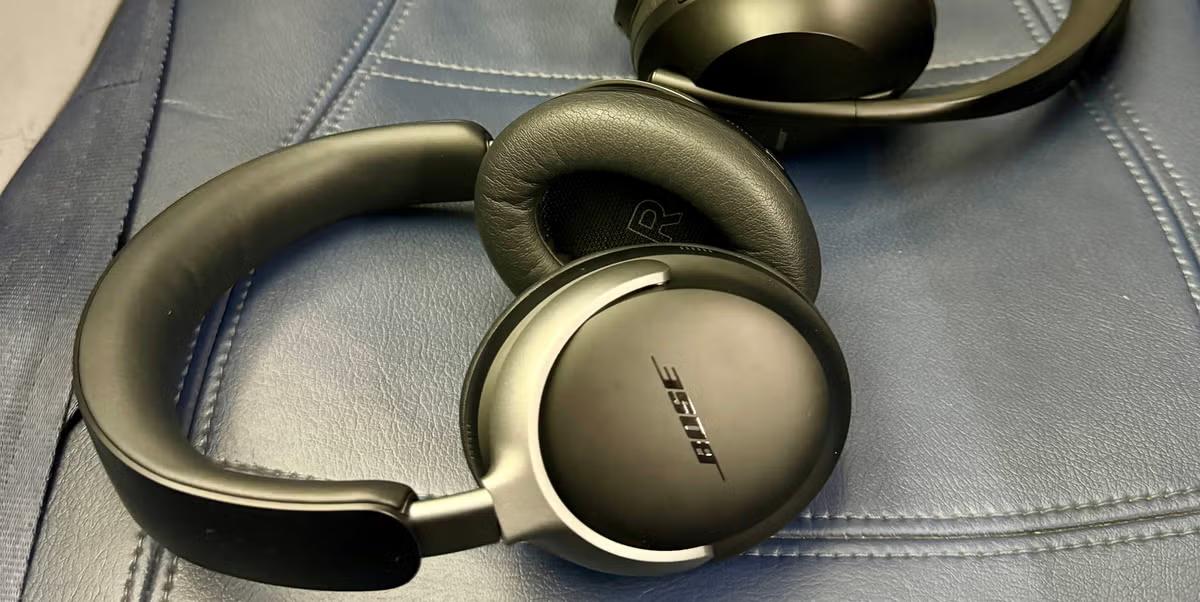
Your Command Center: The Companion App
For the vast majority of modern wireless headphones, the magic happens inside a companion app. Brands like Sony (Headphones Connect), Bose (Music), Sennheiser (Smart Control), and Apple (integrated into iOS settings) all use dedicated apps as a digital control panel for your gear. If you haven’t downloaded it yet, do it now. This is non-negotiable.
This app is your gateway to everything from firmware updates that improve performance and battery life to the powerful tools we’re about to dive into. It’s the first and most crucial step in personalizing your listening experience.
The Heart of Personalization: Mastering the Equalizer (EQ)
If the app is your command center, the equalizer (or EQ) is the main control stick. It’s the most powerful tool you have for shaping the sound to your exact liking.
What is an EQ, Anyway?
Don’t let the technical term intimidate you. Think of an EQ as a sophisticated set of volume knobs, but instead of controlling the overall volume, each knob controls a specific frequency range—the bass, the mids, and the treble.
- Bass (Lows): This is the kick drum, the bass guitar, the deep rumble in movie explosions. Boost this for more punch and impact.
- Mids (Mid-range): This is where vocals, guitars, and pianos live. It’s the heart of most music. If vocals sound distant or muffled, you’ll want to adjust this.
- Treble (Highs): This is the sizzle of cymbals, the crispness of high-hats, and the “airiness” in a track. It adds detail and clarity.
Getting Started with Presets
Most apps offer a range of EQ presets like “Bass Boost,” “Vocal,” “Podcast,” or “Rock.” These are a fantastic starting point. Don’t be afraid to cycle through them while listening to a familiar song. This is the easiest way to understand how different EQ shapes affect your music. A “Bass Boost” preset will be great for hip-hop or EDM, while a “Vocal” preset will bring podcasts or acoustic tracks to life.
Going Manual: The Graphic EQ Explained
Ready to take the training wheels off? The manual graphic EQ gives you precise control. You’ll typically see a series of sliders, each labeled with a frequency number (e.g., 60Hz, 400Hz, 1kHz, 6kHz, 14kHz). Here’s a simple guide to get you started:
- Start Flat: Set all the sliders to the middle (0 dB).
- Play a Song You Know Well: Choose a track with a good mix of instruments and vocals.
- Adjust One Slider at a Time: Move a single slider up or down significantly to hear exactly what part of the sound it affects. For example, boost the 60Hz slider, and you’ll hear the sub-bass get a lot heavier.
- Make Small, Subtle Changes: The key to good EQ is subtlety. Instead of making massive, drastic curves, try small boosts or cuts of just 1-3 dB.
- Trust Your Ears: There is no “right” or “wrong” setting. If it sounds good to you, then it is good. Save your custom profile once you’re happy with it.
“A great EQ setting isn’t about correcting flaws in the headphone; it’s about building a stronger connection to the music. It’s a deeply personal process of tuning the hardware to your own unique hearing and taste.” – Johnathan Carter, Audio Engineer
How to Customize Headphone Settings Beyond the EQ
While the EQ is king, modern headphones offer a whole suite of other customization options that can dramatically improve your day-to-day experience.
Taming the World: Adjusting Noise Cancellation (ANC)
Active Noise Cancellation is a game-changer, but it’s not always a simple on/off switch. Most premium headphones allow you to adjust the level of ANC.
- Maximum ANC: Perfect for noisy environments like planes or trains. When I was testing a new flagship model on a long-haul flight, I was able to dial the ANC to max and completely silence the engine drone.
- Variable/Adaptive ANC: Some headphones can automatically adjust the ANC level based on your environment. They’ll use microphones to listen to your surroundings and apply just enough cancellation, which can feel more natural and save battery life.
- Ambient/Transparency Mode: This is the opposite of ANC. It uses external microphones to pipe in sound from the outside world. Most apps let you adjust how much ambient sound you hear, which is perfect for staying aware of your surroundings while ordering coffee or walking down a busy street.
Making Them Yours: Customizing Controls and Buttons
Tired of accidentally summoning your voice assistant when you just wanted to skip a track? Most companion apps let you remap the functions of the physical buttons or touch-sensitive surfaces on your headphones.
Common customizations include:
- Changing a long-press to control volume instead of ANC modes.
- Assigning a double-tap to skip forward and a triple-tap to go back.
- Disabling touch controls entirely if you find yourself triggering them by accident.
This small tweak can make using your headphones infinitely less frustrating and more intuitive.
Fine-Tuning Your Connection: Codecs and Connectivity
This one is a bit more advanced, but it’s crucial for audio quality. A Bluetooth codec is like a language that your phone and headphones use to communicate. Some codecs, like LDAC or aptX HD, can transmit much more data than the standard SBC codec, resulting in higher-fidelity sound.
While the app might show you which codec is active, you often have to go into your phone’s Bluetooth settings (or even Developer Options on Android) to prioritize “Sound Quality” over “Connection Stability” to ensure you’re using the best possible codec. It’s a small change that can make a big difference, especially if you’re listening to high-resolution audio files.
Step into the Sound: Spatial Audio and 3D Effects
Features like Apple’s Spatial Audio or Sony’s 360 Reality Audio create a virtual, immersive soundstage that makes it feel like the music is happening all around you. The settings for these are usually found in the companion app or your phone’s audio settings. You can often toggle head-tracking on or off, which makes the sound appear to come from your device’s location even as you turn your head. It’s an incredible effect for movies and a fun new way to experience music.
Frequently Asked Questions (FAQ)
Q: Can I customize settings for any pair of headphones?
A: Not all of them. Customization is primarily a feature of modern wireless headphones and earbuds that connect to a companion app. Most wired headphones do not have these features and rely on the EQ settings of your source device (phone, PC, or amplifier).
Q: Will changing EQ settings damage my headphones?
A: No, it’s perfectly safe. Drastically boosting the bass frequencies might introduce some distortion at very high volumes if the drivers can’t handle it, but it will not cause any permanent damage to the hardware. Simply lower the volume or ease back on the EQ if you hear distortion.
Q: What is the best EQ setting for bass?
A: For more bass, focus on boosting the lower frequencies, typically between 60Hz and 250Hz. Start with a 2-3 dB boost in that range and adjust to your taste. Be careful not to overdo it, as too much bass can make the rest of your music sound muddy.
Q: Do I need to update my headphone’s firmware?
A: Absolutely. Firmware updates, delivered through the companion app, are crucial. They often fix bugs, improve connection stability and ANC performance, and sometimes even add new features or EQ presets. Always install them when they become available.
Q: How can I reset my headphone settings back to default?
A: Most companion apps have a “reset to default” or “factory reset” option within their settings menu. This will revert the EQ, control customizations, and all other settings back to how they were out of the box.
Your Sound, Your Rules
At the end of the day, learning how to customize headphone settings is about transforming a mass-produced product into a truly personal piece of audio gear. Don’t be afraid to experiment. Spend an afternoon playing with the EQ, remapping the controls, and testing out different ANC levels. There is no perfect universal setting—only the one that’s perfect for you. By taking the time to dive into these options, you’re not just getting better sound; you’re getting more value out of your purchase and deepening your connection with the music you love.
Now go on, open up that app and start exploring. Let us know in the comments which customization made the biggest difference for you! For more deep dives, check out our full reviews on the latest models.