Few things are as disruptive to your audio experience as an imbalanced sound, where one side of your headphones or speakers is noticeably louder or quieter than the other. This issue can range from a subtle annoyance to a completely distracting problem, impacting everything from your favorite music and movies to critical gaming sessions or important video calls. If you’ve encountered this frustrating problem on your PC, you’re not alone, and the good news is that most audio imbalance issues are fixable with a methodical approach.
This guide will walk you through a series of troubleshooting steps, from simple software adjustments to more advanced driver management and system settings, ensuring you can restore perfect stereo harmony to your computer’s audio output. Let’s dive in and get your sound back in balance.
Understanding Audio Imbalance on PC
Audio imbalance occurs when the sound output from your PC’s left and right channels is uneven. This can manifest as one headphone or speaker being louder, softer, or even completely silent compared to the other. The perception is often that your audio signal is leaning heavily to one side, creating an unnatural and often disorienting listening experience.
Several factors can contribute to this problem, ranging from simple software misconfigurations within Windows to outdated drivers, conflicting audio enhancements, or even physical hardware issues. Identifying the root cause is the first step toward a lasting solution.
Step-by-Step Fixes for Audio Imbalance on Windows
Before delving into complex solutions, it’s always best to start with the most common and straightforward fixes. Many audio imbalance issues stem from incorrect settings within your Windows operating system.
Adjusting Audio Balance in Sound Settings (Windows 10/11)
|
Our Picks for the Best headphone in 2026
As an Amazon Associate I earn from qualifying purchases.
|
||
| Num | Product | Action |
|---|---|---|
| 1 | Sony WH-CH720N Noise Canceling Wireless Headphones Bluetooth Over The Ear Headset with Microphone, Pink |

|
| 2 | Sony WH-CH720N Noise Canceling Wireless Headphones Bluetooth Over The Ear Headset with Microphone and Alexa Built-in, Black New |
|
| 3 | Sony WH-CH720N Noise Canceling Wireless Headphones Bluetooth Over The Ear Headset with Microphone and Alexa Built-in, White New |
|
| 4 | Soundcore by Anker Q20i Hybrid Active Noise Cancelling Headphones, Wireless Over-Ear Bluetooth, 40H Long ANC Playtime, Hi-Res Audio, Big Bass, Customize via an App, Transparency Mode |
|
| 5 | Soundcore by Anker Q20i Hybrid Active Noise Cancelling Headphones, Wireless Over-Ear Bluetooth, 40H Long ANC Playtime, Hi-Res Audio, Big Bass, Customize via an App, Transparency Mode |
|
| 6 | Amazon Basics On Ear Wired Computer Headset with Adjustable Microphone, 3.5mm Port or in-Line Control with USB-A Port, Foldable, Clear Sound, Small/Medium Size, Black |
|
| 7 | Amazon Basics Hybrid Active Noise Cancelling Headphones, 35 Hours Playtime with ANC on and 45 Hours with ANC Off, Wireless, Over Ear Comfortable Fit, Bluetooth, One Size, Black |
|
| 8 | Amazon Basics Bluetooth On-Ear Headphones Wireless with Microphone, Deep Bass, 35 Hour Playtime, Foldable, Collapsible, Portable Travel Friendly, Black |
|
| 9 | Soundcore by Anker Q20i Hybrid Active Noise Cancelling Headphones, Wireless Over-Ear Bluetooth, 40H Long ANC Playtime, Hi-Res Audio, Big Bass, Customize via an App, Transparency Mode (Pink) |
|
| 10 | Soundcore by Anker Q20i Hybrid Active Noise Cancelling Headphones, Wireless Over-Ear Bluetooth, 40H Long ANC Playtime, Hi-Res Audio, Big Bass, Customize via an App, Transparency Mode (White) |
|
The most frequent culprit for unbalanced audio is often an unintended tweak in your system’s sound balance settings. Windows provides built-in controls to adjust the left and right channel volumes independently.
Via the Settings App (Windows 10/11):
- Right-click the Speaker icon in your taskbar and select Sound settings (or go to Start > Settings > System > Sound).
- Under the “Output” section, select the audio device you want to adjust (e.g., your headphones or speakers).
- Click on Device properties (Windows 10) or scroll down and select Volume mixer, then click the arrow next to your output device (Windows 11).
- Look for the “Balance” sliders for the Left and Right channels. Ensure both are set to the same level, typically “100.” Adjust them as needed to achieve an even sound.
Via the Control Panel (Older Windows Versions & Alternative Path):
- Type “Control Panel” into the Windows search bar and open it.
- Change the “View by” option to Large icons or Small icons, then click Sound.
- In the “Sound” dialog box, navigate to the Playback tab.
- Right-click on your primary audio output device (e.g., “Speakers” or “Headphones”) and select Properties.
- Go to the Levels tab. You should see a “Balance” button next to the volume slider. Click it.
- Adjust the Left and Right sliders to ensure they are at equal levels. Click OK to apply changes.
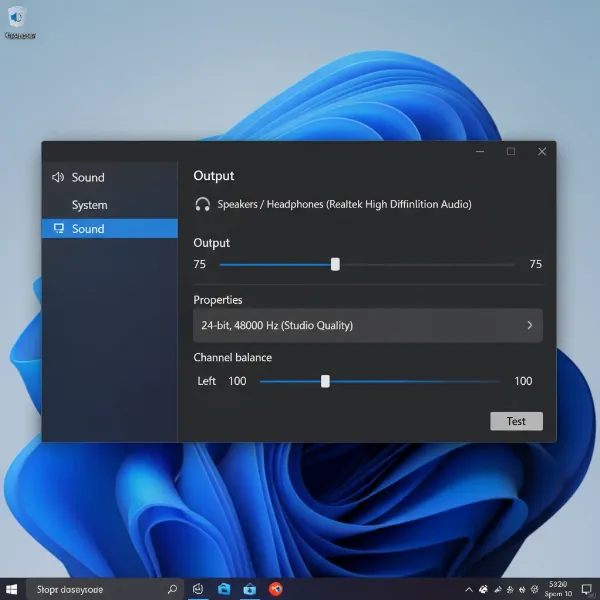 Adjusting left/right audio balance sliders in Windows Sound Settings
Disabling Audio Enhancements
Windows offers various audio enhancement features designed to improve sound quality, such as Bass Boost, Virtual Surround Sound, or Loudness Equalization. While these can be beneficial, they sometimes conflict with drivers or applications, leading to audio imbalance.
To check and disable these:
- Open the Control Panel and go to Sound (as described in the previous step).
- In the Playback tab, right-click your audio device and select Properties.
- Navigate to the Enhancements tab.
- Check the box labeled “Disable all sound effects” or “Disable all enhancements.”
- Click Apply, then OK, and test your audio.
> “Often, the simplest solution is the most overlooked. Before diving into complex driver issues, always check your system’s built-in balance and enhancement settings. They are surprisingly common culprits for uneven sound.” – Colin Toh, Editor-In-Chief at Headphonesty
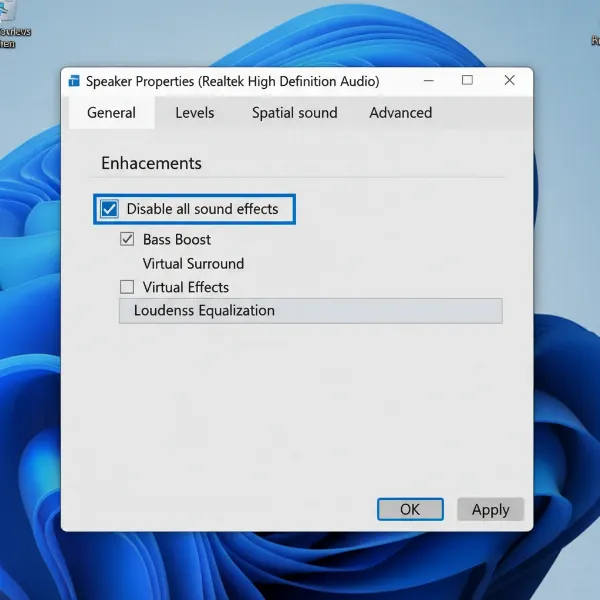 Turning off audio enhancements in Windows to fix sound imbalance
Updating or Reinstalling Audio Drivers
Audio drivers are essential software that allows your operating system to communicate with your sound hardware. Outdated, corrupted, or incompatible drivers are a common cause of various audio problems, including imbalance.
How to Update/Reinstall Audio Drivers:
- Press
Win + Xand select Device Manager. - Expand “Sound, video and game controllers.”
- Right-click on your audio device (e.g., Realtek Audio, NVIDIA High Definition Audio) and select “Update driver.” Choose “Search automatically for drivers.”
- If updating doesn’t resolve the issue, you might need to reinstall the driver. Right-click the audio device again and select “Uninstall device.”
- Check the box “Attempt to remove the driver software for this device” if available, then click Uninstall.
- Restart your PC. Windows will often reinstall a generic driver automatically. For the best results, visit your PC manufacturer’s website or the sound card manufacturer’s website (e.g., Realtek, Intel) to download and install the latest official driver specifically for your model and Windows version.
Running the Windows Audio Troubleshooter
Windows includes a built-in troubleshooter that can automatically detect and often fix common audio problems. It’s a quick and easy first diagnostic step.
- Open Settings (Win + I).
- Go to System > Sound.
- Scroll down to the “Troubleshoot” section and click the Troubleshoot button next to “Output devices.”
- Follow the on-screen prompts and let the troubleshooter diagnose and attempt to fix any issues.
Checking Physical Connections and Hardware
Sometimes, the problem isn’t software-related but a simple physical connection issue or a faulty peripheral.
- Secure Connection: Ensure your headphones or speakers are fully and securely plugged into the correct audio jack on your PC. A loose connection can cause partial audio.
- Try Different Ports: If your PC has multiple audio output jacks (e.g., front and back panels), try plugging your device into a different one. This can help rule out a faulty port.
- Test with Another Device: Connect your headphones or speakers to another device (like a smartphone or another computer) to check if the imbalance persists. If it does, the headphones or speakers themselves might be faulty.
- Mono vs. Stereo Jacks: Ensure you are not plugging a stereo headphone into a mono jack, which might only send audio to one channel. Headphone ports are usually labeled with a headphone icon.
Advanced Troubleshooting for Persistent Issues
If the basic fixes haven’t resolved your audio imbalance, you might need to delve into more advanced troubleshooting.
Rolling Back Audio Drivers or Windows Updates
If the audio imbalance started immediately after a driver update or a Windows update, rolling back to a previous version might solve the problem.
- Roll Back Audio Driver:
- Go to Device Manager (Win + X).
- Expand “Sound, video and game controllers.”
- Right-click your audio device and select Properties.
- Go to the Driver tab and click “Roll Back Driver.” (This option is only available if a previous driver version is stored).
- Follow the prompts and restart your PC.
- Roll Back Windows Update:
- Go to Settings > Update & Security > Windows Update (Windows 10) or Settings > Windows Update > Update history (Windows 11).
- Click “Uninstall updates.”
- Find the recently installed update that you suspect caused the issue, select it, and click Uninstall. Restart your PC.
Disabling Absolute Volume (for Bluetooth Devices)
For users experiencing audio imbalance with Bluetooth headphones, the “Absolute Volume” feature can sometimes be a culprit. This feature synchronizes the volume levels between your PC and the Bluetooth device, but it can occasionally cause conflicts.
Warning: Editing the Windows Registry can be risky. Incorrect changes can lead to system instability. It’s advisable to back up your Registry before proceeding.
- Press
Win + R, typeregedit, and hit Enter to open the Registry Editor. - Navigate to the following path:
ComputerHKEY_LOCAL_MACHINESYSTEMControlSet001ControlBluetoothAudioAVRCPCT - In the right-hand pane, look for an entry named
DisableAbsoluteVolume. - If it doesn’t exist, right-click on an empty space, select New > DWORD (32-bit) Value, and name it
DisableAbsoluteVolume. - Double-click on
DisableAbsoluteVolumeand change its Value data to1. - Click OK and restart your computer.
Resetting Your PC
As a last resort, if all other troubleshooting steps fail and you suspect a deep-seated software issue, resetting your PC can resolve the problem by reinstalling Windows. You’ll typically have the option to keep your personal files.
- Open Settings (Win + I).
- Go to System > Recovery (Windows 11) or Update & Security > Recovery (Windows 10).
- Under “Reset this PC,” click “Get started.”
- Choose “Keep my files” to reinstall Windows without losing your personal data, or “Remove everything” for a fresh start. Follow the on-screen instructions.
Conclusion
Encountering audio imbalance on your PC can be a vexing experience, but as an experienced audio technician knows, a systematic approach to troubleshooting usually leads to a solution. By carefully checking your sound settings, managing audio drivers, disabling enhancements, and addressing potential hardware issues, you can often restore the clear, balanced stereo sound you expect. Remember to start with the simplest fixes and progressively move to more advanced steps. With a bit of patience, your PC’s audio will be perfectly harmonized once again.
What was the most effective solution you found for fixing audio imbalance on your PC? Share your insights and help others fine-tune their sound!
Frequently Asked Questions
Why is one headphone louder than the other on my PC?
This issue commonly arises from imbalanced left/right channel settings in your PC’s sound configuration, conflicting audio enhancements, outdated or corrupted audio drivers, or occasionally, a physical hardware defect in the headphones or the PC’s audio jack. Starting with adjusting balance sliders in Windows Sound settings is usually the quickest fix.
Can a faulty audio jack cause sound imbalance?
Yes, a faulty or partially damaged audio jack on your PC can definitely lead to sound imbalance or even complete loss of audio in one channel. Try plugging your headphones into a different port on your PC, or test them on another device to determine if the jack is the source of the problem.
How do I reset my audio settings to default on Windows?
To reset most audio settings, go to Control Panel > Sound, then for your playback device’s properties, look for a “Restore Defaults” option, particularly in the “Advanced” or “Enhancements” tabs. Reinstalling audio drivers can also effectively reset them to their default state.
Is it normal for a brand new headphone to have imbalance?
While rare, a brand new headphone can sometimes exhibit imbalance due to manufacturing defects. However, it’s more common for the issue to be with your PC’s settings or drivers. Always test new headphones with multiple devices before assuming they are faulty.
What is “Mono Audio” and how does it help?
Mono audio combines both left and right audio channels into a single channel, ensuring that the same sound is directed to both speakers or headphone cups. Enabling “Mono Audio” in your Windows Accessibility settings can resolve an imbalance by forcing identical output to both sides, though you will lose the stereo effect.